Getting Started
Overview
macOS Updates v2.0.10 updates the software already on your Apple Silicon Mac in one command. It covers App Store apps, terminal tools (npm, bun and native command-line tools), Homebrew formulae and casks, and internet apps. It then refreshes the app list and updates macOS last.
There is nothing to approve app by app. If you want a different behaviour for one app, set it to manual or skip in the Apps tab.
Requirements
An Apple Silicon Mac, macOS 13 or later and an internet connection. Python 3.9 or later is needed for the interface and the app list. Homebrew and mas are optional.
Languages
The interface comes in seven languages: English, Polish, German, French, Spanish, Italian and Portuguese.
Installation
Paste this into Terminal. The installer downloads a tagged release package, verifies its SHA-256 checksum, needs no sudo and adds the mac-update command. Installing updates nothing by itself.
/bin/bash -c "$(curl -fsSL https://github.com/KasprowiczM/macOS_updates/releases/latest/download/install.sh)"
What the installer does
It checks that this is an Apple Silicon Mac on macOS 13 or later, downloads the release package, verifies its SHA-256 checksum and adds the mac-update command and macos-update, the same command under a longer name. It warns when another program on your PATH answers to either name and names its file. It never imports another person’s app list and never installs apps.
Step 2. Check readiness
A read-only report checks the platform, tools, disk space, power and network. It ends with a ready message or a list of warnings.
mac-update doctor
Step 3. Preview
Preview goes through the same steps as an update and shows what would happen. It installs nothing and writes no history.
mac-update preview
Step 4. Update everything
Open the interface, choose Update everything on the Dashboard and press Enter. macOS runs last and may ask for a restart.
mac-update
Updating the toolkit
When a newer version is out, check for it with this command. It shows what is new and asks before it changes anything. You can also use Settings or Diagnostics in the interface.
mac-update update-self --check
Uninstall
Removing it is one command. It asks for confirmation first. It removes both commands (mac-update and macos-update), but only the toolkit’s own links. It does not remove your apps, Homebrew or any other tool.
The toolkit’s own Node and global npm packages live in node/ and npm-global/ inside the program folder (~/.local/share/mac-update). The installer accepts a folder that already holds them, and an upgrade replaces only the program’s own files around them. Uninstall keeps them and says so; --purge-tools removes them too.
mac-update uninstall
User Guide
The terminal interface
In a terminal, mac-update opens an interface with tabs. In a script, over SSH without a terminal, or with MAC_UPDATE_NONINTERACTIVE=1, you get plain text instead. The window needs at least 40 columns by 12 rows.
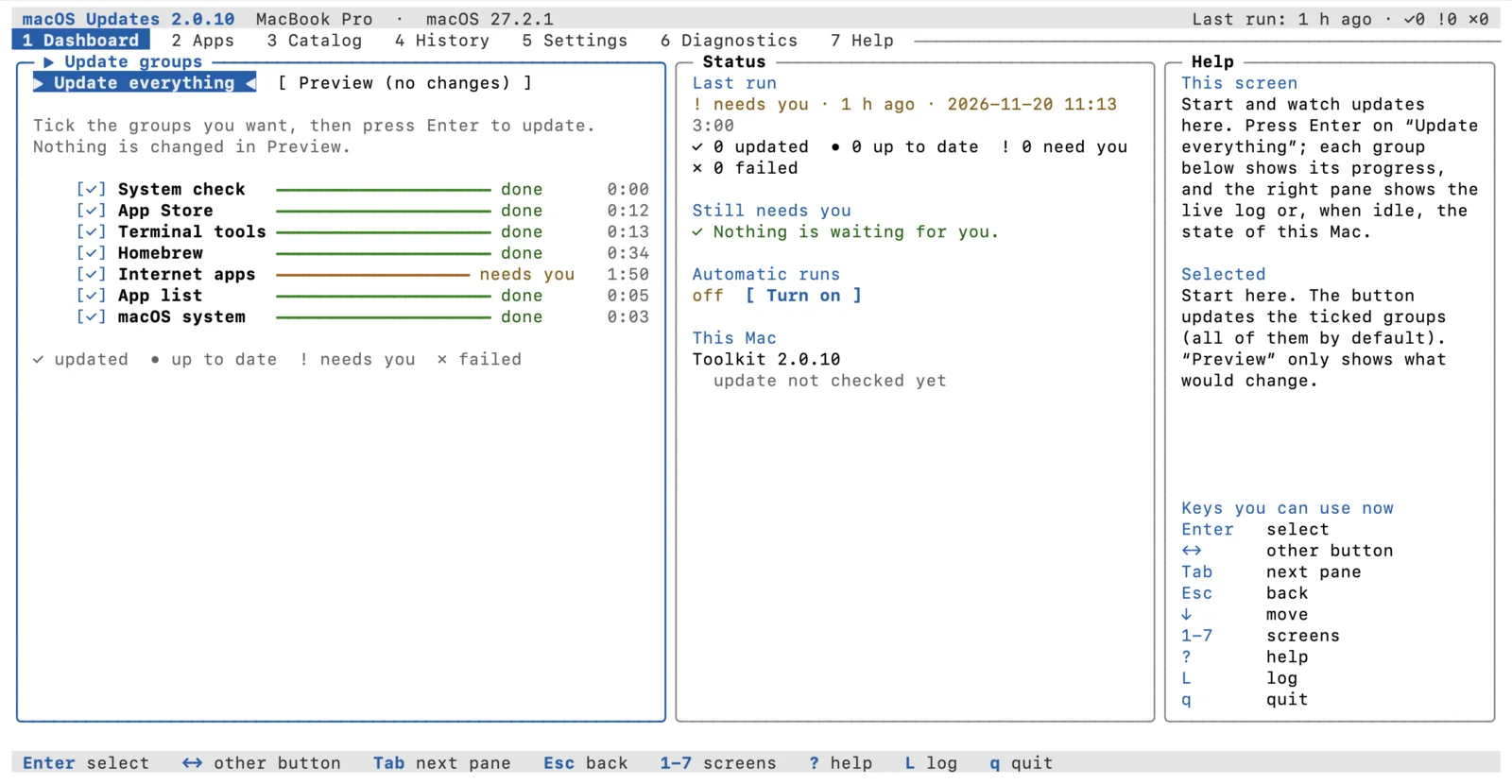
Move with the arrow keys. Enter opens or confirms, Tab goes to the next pane, Esc goes back, 1 to 7 jump to a tab, ? opens help, L shows the full log and q quits. The mouse works too. The bottom line always lists the keys that work right now.
| Tab | What it is for |
|---|---|
| Dashboard | Starts an update. Shows each group with live progress, and each app inside it while it runs. A side panel shows the last run, what still needs you and the state of this Mac. |
| Apps | Every app and package found on this Mac. Choose how each one is updated. |
| Catalog | The whole tested list: what can still be added first, then what is already installed (read-only, with its version). Nothing is selected until you choose, and the installer asks before each change. Update runs never use it. |
| History | Earlier runs, newest first. Enter shows the details. |
| Settings | What to update, safety limits, schedule, language and look, including colours (Auto follows your terminal, or force dark or light) and accent colour themes. Every change is saved at once. |
| Diagnostics | Checks you can run: check this Mac and its requirements, coverage report, update feeds, rebuild the app list, finish interrupted updates, check for a toolkit update. |
| Help | How the program works and how to move around. The side panel explains the highlighted item. |
Running an update
On the Dashboard, Update everything checks and updates every group that is turned on, and Preview (no changes) goes through the same steps and shows what would happen.
During a run you see each group and each app: checking, downloading, verifying, installing. L opens the full log. Stop ends the run safely: apps already updated stay updated. Questions, for example about a restart, wait for your answer, and if none comes the safe answer is used. Your administrator password is typed in the terminal and is never saved or shown.
mac-update              # the interface
mac-update preview      # preview, no changes
mac-update run          # plain text instead of the interface
mac-update --cli      # the same as run
mac-update doctor       # read-only readiness report
At the end the result screen has three lists:
| List | Meaning |
|---|---|
| Updated | These apps are now current. |
| Up to date | Nothing was needed. |
| Needs you | The toolkit could not finish these by itself. Each item has a reason and a suggested action. |
What “Needs you” means
| Reason | What to do |
|---|---|
| The app is open | Quit the app, then run the update again. The toolkit never closes it for you. |
| Sign-in required (App Store) | Open the App Store, sign in, then run the update again. |
| A password is needed | Run the update again from a terminal and type your administrator password when asked. Scheduled runs cannot ask, so they report this. |
| A restart is needed | The update is installed but takes effect after a restart. Restart when it suits you. |
| No automatic method | There is no safe automatic way to update this app. Open the app and use its own “Check for updates”. |
| The download failed | Check your internet connection and run the update again. |
| Checksum mismatch | The file did not match its checksum, so nothing was installed. Try again later. If it keeps failing, update the app by hand. |
| Manual mode | You set this app to manual. Update it yourself, or switch it to automatic in the Apps tab. |
| The maker’s update information could not be reached | Try again later. The maker’s site may be down. |
| A new major version is available | Major upgrades are off. Allow them in Settings, or update by hand. |
| Not enough disk space or battery too low | Free some space, or connect the power adapter, then run again. |
| Took too long | Run again. Open the full log (L) if it repeats. |
| The app’s own updater opened | Finish the update in the window the app opened. |
Per-app tuning
Open the Apps tab. Type / to search by name or source. Press Enter on an app. Space marks several apps so you can change them together.
| Mode | Meaning |
|---|---|
| automatic | The toolkit updates it. This is the default. |
| manual | The toolkit only tells you when an update is waiting. |
| skip | The toolkit leaves it alone. |
Where an app has more than one source you can pick a preferred one: default, Homebrew, App Store, vendor website or built-in updater. The Method column shows how the toolkit knows the app: tested, auto-detected (from an App Store receipt, Homebrew, an update feed or a built-in updater) or manual when nothing was recognised. An unknown app never blocks the rest of the run.
Automatic runs
Automatic runs, at login or daily, are off by default. You turn them on in Settings. Each run ends with one summary notification.
An automatic run never waits for an answer and skips the macOS system update unless you enable it. Anything that needs your password or a restart is skipped and reported as Needs you. Finish it by running the update yourself. The schedule script offers --at-login, --daily HH:MM and --days options.
How it works
Run order
One run goes through these groups, in this order. A system check comes first. macOS is always last because it can ask for a restart. You can turn a group off on the Dashboard.
| Step | Group | What it covers |
|---|---|---|
| 1 | App Store | Apps from the App Store. |
| 2 | Terminal tools | npm, bun and command-line tools that update themselves. |
| 3 | Homebrew | Formulae and casks. |
| 4 | Internet apps | Apps you downloaded from a maker’s website, updated from the maker’s feed, by a verified direct download or by the app’s own updater. |
| 5 | App list | The list of your apps is refreshed. |
| 6 | macOS | The system update, always last. |
Safety rules
| Rule | Meaning |
|---|---|
| Open apps | Never closed. They are reported under Needs you. |
| Downloads | Only from allowed hosts, with a valid code signature and Gatekeeper approval. |
| Installed only | An update run never installs an app you do not have. Only the optional Catalog can install, and only what you pick. |
| One failure | It does not stop the other items or the macOS update. |
| Passwords | Typed in the terminal and never saved. An automatic run never waits for one. |
Reference
Platform Status
macOS Updates v2.0.10 is for Apple Silicon and macOS 13 or later only.
| Platform | Status |
|---|---|
| Apple Silicon, macOS 13 or later | Supported |
| Intel Mac | Unsupported. The scripts stop before changing anything. |
| Linux / Windows | Out of scope |
Commands
| Command | What it does |
|---|---|
| mac-update | Opens the interface. mac-update --tui does the same. Every command works from any folder, and macos-update is the same command under a longer name. |
| mac-update run | Runs all updates in plain text. mac-update --cli (also --plain) does the same. Options such as -y, --skip-system and --non-interactive go to the update script. |
| mac-update preview | Preview: shows what would update and changes nothing. |
| mac-update doctor | Read-only readiness report. |
| mac-update scan | Rebuilds the list of installed apps. |
| mac-update settings | Opens the interface on the Settings screen. |
| mac-update update-self | Checks for a newer version of the toolkit. |
| mac-update uninstall | Removes the toolkit from this Mac, after asking. |
Source and reports
Source code
The public repository contains the program source and the user guides.
git clone https://github.com/KasprowiczM/macOS_updates.git
Reporting an app
Share the app name and where it comes from in the public repository. Do not include a personal app list.
Security
Report vulnerabilities privately through GitHub Security Advisories.
FAQ
Frequently Asked Questions
For the public version guide, see the
Guide on GitHub